
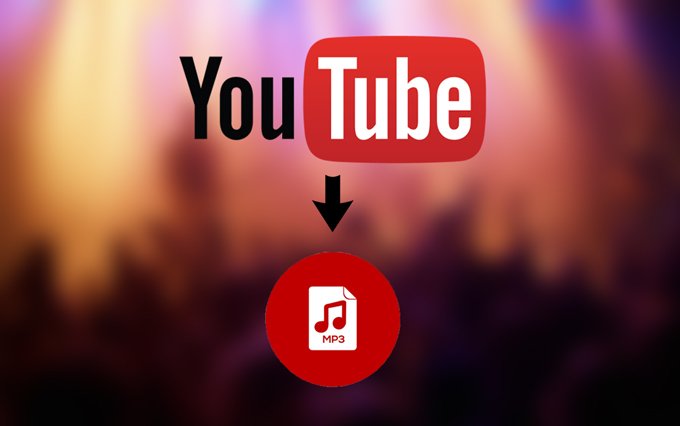
YouTube is full of music, podcasts, interviews, educational lessons, and other audio content. Sometimes, you want to listen without keeping a video open. That is where YouTube to MP3 conversion comes in.
Converting a YouTube video to MP3 can create an audio file that you can play on a compatible device. It can be useful for your own videos, public-domain recordings, or content whose creator has given you permission to download and convert.
However, not every online converter is trustworthy. Some websites use misleading download buttons, aggressive advertisements, or unwanted software. There are also copyright and platform rules to consider before saving audio.
This guide explains how YouTube to MP3 conversion works, the best ways to approach it, what MP3 quality means, and how to avoid common mistakes.
What Is YouTube to MP3?
YouTube to MP3 refers to converting the audio portion of a YouTube video into an MP3 audio file.
A YouTube video usually contains a video stream and an audio stream. A conversion tool extracts or processes the audio and creates a file that can be played by an audio player.
For example, imagine you have a video containing a spoken lecture. Instead of watching the entire video, you may want an audio version for listening during a walk. An MP3 file can be convenient for that purpose, provided you have the right to make the copy.
What does MP3 mean?
MP3 stands for MPEG-1 Audio Layer III. It is a compressed audio format designed to reduce file size while retaining useful sound quality.
Compared with an uncompressed audio file, an MP3 usually takes less storage space. The trade-off is that compression can remove some audio information.
MP3 remains widely supported by phones, computers, car audio systems, and music players.
Is YouTube to MP3 Legal?
The legality depends on the content, your permission to use it, and the applicable law.
There is no universal rule that makes every YouTube-to-MP3 conversion legal or illegal.
Generally safer examples include:
- Converting a video you created and own.
- Downloading audio that the creator has explicitly made available for download.
- Using content released under a license that permits downloading and conversion.
- Converting public-domain material where no applicable rights restrict the use.
A video being publicly visible on YouTube does not automatically mean that its audio is free to copy.
YouTube’s own rules
YouTube’s Terms of Service restrict downloading content except where the service expressly permits it, you have prior written permission from YouTube and the relevant rights holders, or applicable law allows it.
The platform also provides official download features for certain content and subscription plans. These features are not necessarily the same as obtaining a permanent MP3 file.
Before converting anything, check:
- Who owns the video or audio?
- Does the creator permit downloads?
- Does the license allow audio extraction?
- Are you using an official download option instead?
For current rules, consult the official YouTube Terms of Service and YouTube Help .
How YouTube to MP3 Conversion Works
Although converter websites may look simple, several technical steps happen behind the scenes.
Video source
The user provides a YouTube video address or selects a permitted local video file.
Audio processing
A compatible tool reads the audio stream or source file and prepares it for conversion.
MP3 encoding
The audio is encoded into MP3 format using a chosen bitrate and other settings.
Audio file
The resulting MP3 can be saved and played in an audio player, subject to the applicable rights and service rules.
The process is not magic: it is mainly audio extraction and encoding. The quality of the original recording and the conversion settings both affect the result.
Best Ways to Convert YouTube Videos to MP3
There are several approaches. The right choice depends on whether you own the content, whether you need a permanent file, and what device you use.
1. Use an official download or offline listening feature
This is the best starting point for many users.
YouTube and YouTube Music offer official ways to listen offline in supported circumstances. Depending on the service and region, you may be able to save content for offline playback within the app.
Advantages:
- Uses an official service feature.
- No need to trust an unfamiliar converter website.
- Convenient for listening on a phone.
- Less risk of downloading unwanted files.
Limitations:
- Offline downloads may stay inside the app.
- They may not produce a standalone MP3.
- Availability depends on the content, account, and region.
If your goal is simply listening without an internet connection, an official offline option may be more suitable than an MP3 converter.
2. Convert your own YouTube videos
If you uploaded the video yourself, you may be able to download your original video or an available copy from YouTube Studio.
You can then extract the audio from that file using an audio editor or media converter.
A practical workflow is:
- Download your own video through an available official option.
- Open the video file in an audio conversion application.
- Select MP3 as the output format.
- Choose an appropriate bitrate.
- Export the audio.
- Play the resulting file to check it.
This approach is useful for creators who want audio versions of their own tutorials, podcasts, interviews, or voice recordings.
3. Convert permitted local video files
You do not always need a website.
If you already have a video file and have permission to extract its audio, a desktop audio or media converter can create an MP3.
Common tools include:
- VLC media player — a media player that also supports conversion workflows.
- Audacity — an audio editor useful for working with audio files.
- FFmpeg — a command-line multimedia framework for users who prefer technical tools.
Official websites:
- VLC media player
- Audacity
- FFmpeg
A local workflow can be more transparent because you control the file and can inspect the output.
Understanding MP3 Quality and Bitrate
One of the most common mistakes is assuming that a higher bitrate always creates better sound.
It does not.
Bitrate describes how much data is used to encode audio per second. It is commonly measured in kilobits per second, or kbps.
| MP3 bitrate | Typical use |
|---|---|
| 96 kbps | Speech and basic listening |
| 128 kbps | Smaller files and general audio |
| 192 kbps | A balanced option for many recordings |
| 256 kbps | Higher-quality listening |
| 320 kbps | High MP3 bitrate, with larger files |
These are practical examples, not guarantees of sound quality.
Does 320 kbps mean perfect audio?
No.
If the original audio is low quality, converting it to 320 kbps will not restore missing detail. It may create a larger file without a meaningful improvement.
For example, converting a compressed audio source to a higher MP3 bitrate is like saving a small, low-resolution image as a larger image. The file grows, but the original detail does not magically return.
What bitrate should you choose?
For ordinary speech, a lower bitrate may be sufficient. For music, a higher bitrate can be useful if you want to preserve more of the source’s quality.
A practical approach:
- Spoken lectures: prioritize clear speech and manageable file size.
- Podcasts: moderate bitrate is often sufficient.
- Music: choose a higher bitrate if quality matters.
- Archiving original recordings: keep the original audio format when possible instead of converting everything to MP3.
If you have a lossless source such as WAV or FLAC, keep that original file. MP3 is better suited to portable listening than to preserving a master recording.
Step-by-Step: A Safe YouTube to MP3 Workflow
The following workflow is designed for content you own or are authorized to convert.
Step 1: Confirm permission
Before starting, check the video’s ownership or license.
If it is someone else’s music, podcast, or lecture, look for download instructions or a clear license.
Step 2: Choose the source
Use an official download option or a local video file you are allowed to process.
Avoid relying on unknown websites simply because they promise unlimited downloads.
Step 3: Select a reputable conversion method
For your own files, a desktop audio converter can be a straightforward choice.
For offline listening, check whether YouTube’s official features meet your needs.
Step 4: Select MP3 settings
Choose a bitrate that fits the content. Do not select the highest possible setting automatically.
For speech, moderate quality may be enough. For music, a higher setting may make sense.
Step 5: Export the audio
Save the file with a useful name, such as:
lecture-episode-01.mp3
A descriptive filename makes it easier to find later.
Step 6: Check the result
Play the audio from beginning to end, or at least inspect key sections.
Look for:
- Missing audio.
- Sudden silence.
- Distortion.
- Incorrect duration.
- Unwanted background noise.
- An incomplete export.
Step 7: Organize your audio
Store your files in folders by topic, creator, or project.
For example:
Audio Library/
├── Podcasts/
├── Lectures/
├── Personal Videos/
└── Music With Permission/
This is especially useful if you convert audio regularly.
Common Mistakes to Avoid
Using any website that appears first in search results
Search ranking does not guarantee that a converter is safe.
Some websites may use deceptive buttons, fake download prompts, or aggressive advertising.
A site that looks professional can still be unreliable.
Downloading software from suspicious pop-ups
If a website tells you to install a browser extension, unknown program, or security tool before conversion, stop and evaluate it carefully.
Do not install software merely because a download button says it is required.
Choosing 320 kbps for every file
As explained earlier, a larger bitrate does not repair poor source audio.
Use settings that match the original recording and your listening needs.
Ignoring copyright
A converter can process a file technically, but that does not mean you have permission to use the result.
Personal convenience is not the same as a copyright license.
Saving files with confusing names
A folder full of files called audio1.mp3, audio2.mp3, and download.mp3 becomes difficult to manage.
Use clear names and keep track of where the content came from.
Expecting every YouTube video to work
Videos may have different formats, restrictions, audio tracks, or availability conditions.
Some content may not be accessible through a particular conversion method. A failed conversion does not necessarily mean your device is broken.
Is Online YouTube to MP3 Conversion Safe?
It can be risky when using unfamiliar websites.
The main concerns are not usually the MP3 format itself. The risks come from the website, the software it asks you to install, and the files it provides.
Warning signs
Be cautious when a site:
- Opens multiple unexpected tabs.
- Shows several fake download buttons.
- Requests unnecessary personal information.
- Requires unknown software.
- Claims your device has a virus.
- Forces you to install a browser extension.
- Downloads an unexpected file type.
- Promises unlimited premium features for free.
A genuine audio file should normally have a recognizable audio extension such as .mp3. If you receive an executable file such as .exe or an unexpected archive, do not open it without checking what it is.
How to reduce risk
Use a trusted local converter for files you are authorized to process. Keep your operating system and security software updated. Download applications from their official websites.
If you use a website, avoid entering sensitive information or installing unnecessary software.
MP3 vs Other Audio Formats
MP3 is convenient, but it is not always the best format.
MP3
Small, widely supported, and suitable for everyday listening. Uses lossy compression.
WAV
Often used for uncompressed audio. Larger files, useful for editing and preserving recordings.
FLAC
Lossless compression. Retains the original audio information while reducing file size compared with WAV.
AAC
A modern lossy audio format often used in streaming and video workflows.
For casual listening, MP3 is usually convenient. For audio editing or preservation, a lossless format may be preferable.
What About YouTube to MP3 on Mobile?
The basic principles are the same on phones and computers, but the experience can differ.
Android
Android users can listen to audio through compatible apps and use official offline features where available. For files they own or are allowed to convert, a compatible audio converter can help create MP3 files.
Check the app’s permissions and download it from a trusted source.
iPhone
iPhone users can use official offline listening options or work with permitted audio files through compatible apps.
Because iOS manages files and apps differently from a desktop computer, the process may involve the Files app or an audio application rather than a traditional download folder.
Mobile safety tip
Avoid websites that request unnecessary permissions or tell you to install unknown configuration profiles, extensions, or applications.
If the purpose is simply offline listening, an official app feature may be easier than creating a separate MP3.
Practical Tips for Better Audio Results
Keep the original file
If you own the video, save the original recording before converting it. This gives you a better source for future editing.
Avoid repeated conversions
Converting MP3 to MP3 multiple times can reduce quality. If you need to change the bitrate, start from the highest-quality source available.
Use appropriate filenames
Include the creator, title, and episode number where useful.
Example:
history-podcast-episode-05.mp3
Check metadata
Some audio tools allow you to add title, artist, album, and cover information. This helps organize files in music players.
Keep backups of important recordings
If the audio is valuable, store the original in a separate location. An MP3 should not be the only copy of an important recording.
Frequently Asked Questions
1. What is YouTube to MP3?
YouTube to MP3 is the process of converting the audio from a YouTube video into an MP3 file. It is commonly used for listening to permitted audio content without the video.
2. Is YouTube to MP3 free?
Some conversion tools are free, while others charge for features. Official offline listening features may also require a subscription or have other conditions. Free does not always mean safe.
3. Can I convert any YouTube video to MP3?
Not necessarily. Availability, technical restrictions, and copyright permissions can affect whether a video can be converted. You should only convert content you own or are authorized to use.
4. Does converting YouTube to MP3 reduce quality?
It can. MP3 uses lossy compression, and the result depends on the original audio and encoding settings. A higher bitrate does not restore details already lost in the source.
5. What is the best MP3 bitrate?
There is no single best bitrate for every recording. Speech can work well at a moderate bitrate, while music listeners may prefer higher quality. Choose based on the source and your storage needs.
6. Can I convert YouTube to MP3 on my phone?
You can work with permitted audio files and use official offline listening features on supported devices. The exact process depends on the operating system and the tool.
7. Why does a YouTube to MP3 converter fail?
A conversion may fail because of an unavailable video, unsupported format, connection issue, service restriction, or problem with the tool. Try an official download option or a local file you have permission to process.
8. Is MP3 better than WAV?
MP3 is smaller and convenient for everyday listening. WAV is often better for uncompressed audio editing and preservation. The better format depends on your purpose.
Final Thoughts
YouTube to MP3 conversion can be useful when you want audio for offline listening, personal projects, or recordings you have permission to use. The key is to choose a suitable workflow rather than relying on the first converter you find.
For your own videos, downloading the source and converting it locally is a practical option. For ordinary listening, official offline features may be easier. When audio quality matters, understand bitrate and keep the original recording whenever possible.
A good approach balances three things: permission, safety, and audio quality. Once those are covered, choosing MP3 becomes a straightforward technical decision.