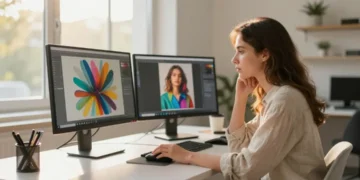

You type a sentence. Fifteen seconds or so later, you have four original images. That is the whole pitch of Bing Image Creator, Microsoft’s free text-to-image tool, and it works well enough that millions of people use it for blog art, mockups, party invitations, and presentation slides.
It also has real limits. Some are technical, some are policy, and a few will surprise you the first time you hit them. This guide covers what the tool does, how to use it properly, and when you should reach for something else.
What Is Bing Image Creator?
Bing Image Creator is a browser-based AI image generator from Microsoft. You describe a picture in plain language, and the system generates a set of images that match your description. You can open it at bing.com/create, and the same technology shows up inside Microsoft Copilot, the Bing mobile app, and Microsoft’s Designer tools.
The tool started as a front end for OpenAI’s DALL·E 3 model. Microsoft has since expanded its image tooling, and some reviews mention additional models, including Microsoft’s own. The exact model behind your results can change without much announcement, so treat any single “it uses X” claim with some caution. What stays constant is the experience: prompt in, images out, no design skills required.
You need a free Microsoft account. There is no subscription wall for the basic experience, which is the main reason it spread so quickly.
Why It Matters
Custom images used to mean one of three things: paying a designer, buying stock photos, or settling for something generic. AI image generation adds a fourth option that costs nothing and takes seconds.
For a small publisher, that means a unique header image for every post. For a teacher, it means an illustration of exactly the scene a lesson needs. For a marketer, it means ten rough visual concepts before a meeting instead of one.
The free price matters, but so does the low friction. Many rival tools ask you to join a Discord server, learn special commands, or enter a credit card. Bing asks you to log in and type.
Key Benefits
- It costs nothing to start. Standard use is free with a Microsoft account.
- It is easy to learn. Natural sentences work. You do not need prompt syntax.
- It is fast. Results usually arrive in seconds, especially while you have boosts available.
- It handles everyday subjects well. Illustrations, concept art, simple product scenes, and stylized portraits generally come out usable.
- It sits inside tools you may already use. Copilot, Edge, and Microsoft’s design apps connect to it.
How to Use Bing Image Creator, Step by Step
- Open the tool. Go to bing.com/create, or find image creation inside Copilot.
- Sign in. Use any Microsoft account. A new one takes a couple of minutes to set up.
- Write your prompt. Describe the subject, setting, style, and mood. More on this below.
- Generate. Click Create. You will usually get four options.
- Pick and refine. Open the one closest to what you wanted. If it is not right, change the prompt rather than rerunning the same words.
- Download or save. Download the image, or keep it in your creations history. Do not treat that history as permanent storage. Save the files you care about yourself.
Writing prompts that work
The most common mistake is writing a search query instead of a description. “Dog beach” gives you a generic result. Compare it with this:
A golden retriever running through shallow waves at sunrise, low camera angle, warm light, shallow depth of field, photorealistic
That prompt names the subject, the action, the setting, the camera position, the lighting, and the style. The tool does not have to guess any of those.
A few habits help:
- Lead with the subject. Put the most important thing first.
- Name a style. “Watercolor,” “flat vector illustration,” “35mm film photo,” or “isometric 3D render” change the result a lot.
- Describe light. “Golden hour,” “overcast,” and “neon at night” shape the mood more than most people expect.
- Change one thing at a time. If you rewrite everything, you cannot tell what helped.
- Leave out what you do not want in the picture. Mentioning something often makes it appear. Rephrase toward what you do want.
Understanding Boosts and Daily Limits
Image Creator has a boost system. Boosts speed up generation. When you run out, the tool still works, but each request can take longer. Microsoft Rewards points have been tied to this system, and the number of daily boosts has changed over time. Several guides cite different figures, so check what your account shows rather than trusting a number from an article, this one included.
The practical takeaway is simple. If you are in a hurry, use your boosts on prompts you have already refined. Spend slow generations on early experiments.
Where It Works Well, and Where It Does Not
It works well for blog and social graphics, concept art, stylized illustrations, backgrounds, mood boards, and quick visual ideas.
It struggles with:
- Text inside images. Signs, labels, and logos often come out garbled. Add real text later in an editor.
- Hands and fine anatomy. Models have improved, but odd fingers still appear.
- Exact brand consistency. Getting the same character or product to look identical across several images is hard.
- Precise layouts. If you need a specific arrangement of objects, expect several tries.
- Fine control. Tools aimed at professionals offer more control over composition and style.
Content Filters and Rules
Microsoft applies content restrictions, and users often find them strict. Prompts can be blocked for violent, sexual, or hateful content, for requests involving real public figures in some contexts, and sometimes for innocent wording that trips an automated check.
If a prompt is blocked, do not keep resubmitting it. Repeated attempts can lead to warnings. Rewrite the idea in neutral terms, or simplify it.
Also read the terms before using images commercially. Rules on ownership and permitted use can change, and an AI image is not automatically free of legal questions. For client work or anything you will sell, check Microsoft’s current terms. If the stakes are high, ask a lawyer.
Common Mistakes
- Writing too little. Short prompts leave the tool to fill in the blanks, and its defaults look generic.
- Writing too much. A paragraph of conflicting instructions can confuse the output. Aim for one clear scene.
- Expecting readable text. Plan to add it afterward.
- Skipping a check before publishing. Look closely for warped hands, odd objects, and background details that do not make sense.
- Treating the first result as final. The second or third prompt revision is usually the one that works.
Expert Tips
- Build a small personal library of style phrases that work for you, such as “soft pastel illustration, clean background.”
- Generate at the idea stage, then refine in an editor like Canva or Photoshop for cropping, text, and color correction.
- If you need images for a series, reuse the same style wording in every prompt to keep a consistent look.
- Disclose AI-generated imagery where your audience or platform expects it.
Alternatives Worth Knowing
If Bing Image Creator feels limiting, other tools take a different approach. Midjourney is popular for artistic polish and is paid. Adobe Firefly focuses on commercially oriented workflows. ChatGPT and other chat-based generators let you refine images through conversation. Open-source options like Stable Diffusion give you the most control but demand more setup. None is best for everyone. Free and simple suits Bing. Control and polish suit the others.
Frequently Asked Questions
Is Bing Image Creator really free?
Yes, basic use is free with a Microsoft account. Boosts and the Microsoft Rewards program affect speed, not access.
Where can I find Bing Image Creator?
At bing.com/create, and inside Microsoft Copilot and the Bing mobile app.
Do I need to install anything?
No. It runs in a browser, and there are mobile apps if you prefer them.
Can I use the images commercially?
Often yes, but the rules depend on Microsoft’s current terms, which can change. Read them before using images in paid or client work.
Why was my prompt blocked?
Usually a content filter flagged a word or concept. Rewrite the prompt in simpler, more neutral terms instead of retrying the same one.
Why do the images have distorted text or hands?
These are known weak spots of image models in general, not a bug in your prompt. Fix text in an editor, and regenerate if a hand looks wrong.
Is Bing Image Creator better than Midjourney?
It depends on your priorities. Bing wins on cost and ease. Midjourney generally gives more stylistic range and control but requires payment.
How long are my images saved?
Microsoft keeps a creations history, but retention periods vary and can change. Download anything you want to keep.
Final Thoughts
Bing Image Creator is a good place to start with AI images. It costs nothing, it is easy to pick up, and it produces usable results for the kinds of jobs most people have: a blog header, a slide visual, a quick concept. Learn to write specific prompts, expect to iterate, and keep a realistic view of its limits with text, hands, and consistency.
If your work needs tight control or polished brand assets, you will probably outgrow it. Until then, Bing Image Creator is a strong, no-cost way to see what text-to-image generation can do.